
Operator Connection Checking allows you to configure SafeZone to send a notification to a user group informing them that no Command users are logged into the system or the OmniGuard users have dropped out of Command.
Example 1: An organisation's control room has lost network access meaning all computers have lost connection to the internet. The notification for No Command Operators Connected will get sent out and will be sent out in 15-minute intervals until the internet connection resumes. The control room users log into Command from a laptop which has a network connection from a mobile device which stops the notifications being sent out.
Example 2: A security guard is on patrol on-site and is the only OmniGuard user on shift. The guard walks into an area which is a black spot for internet and mobile data connectivity. Command detects that the OmniGuard app has lost connection. The notification for No OmniGuard Operators Connected will get sent out and will be sent out in 15-minute intervals until the device regains its connection to the network.
Pre-requisite: This feature needs to be enabled in conjunction with an email template for each scenario as a notification template will be sent out if no one is logged into Command or OmniGuard. The template should not be created using substitution tags as it needs to be sent out without any human interaction.
For instructions on how to set up Notification Templates please see the guide on Notification Templates
To view the Operator Connection Checking settings, click on Admin -> Zone Configuration -> Global Settings -> Operator Connection Checking
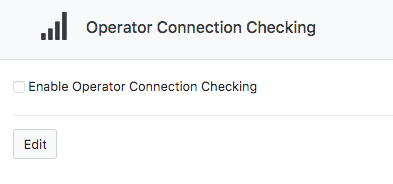
To configure Operator Connection Checking:
- Click on Edit
- Tick the check-box for Enable Operator Connection Checking
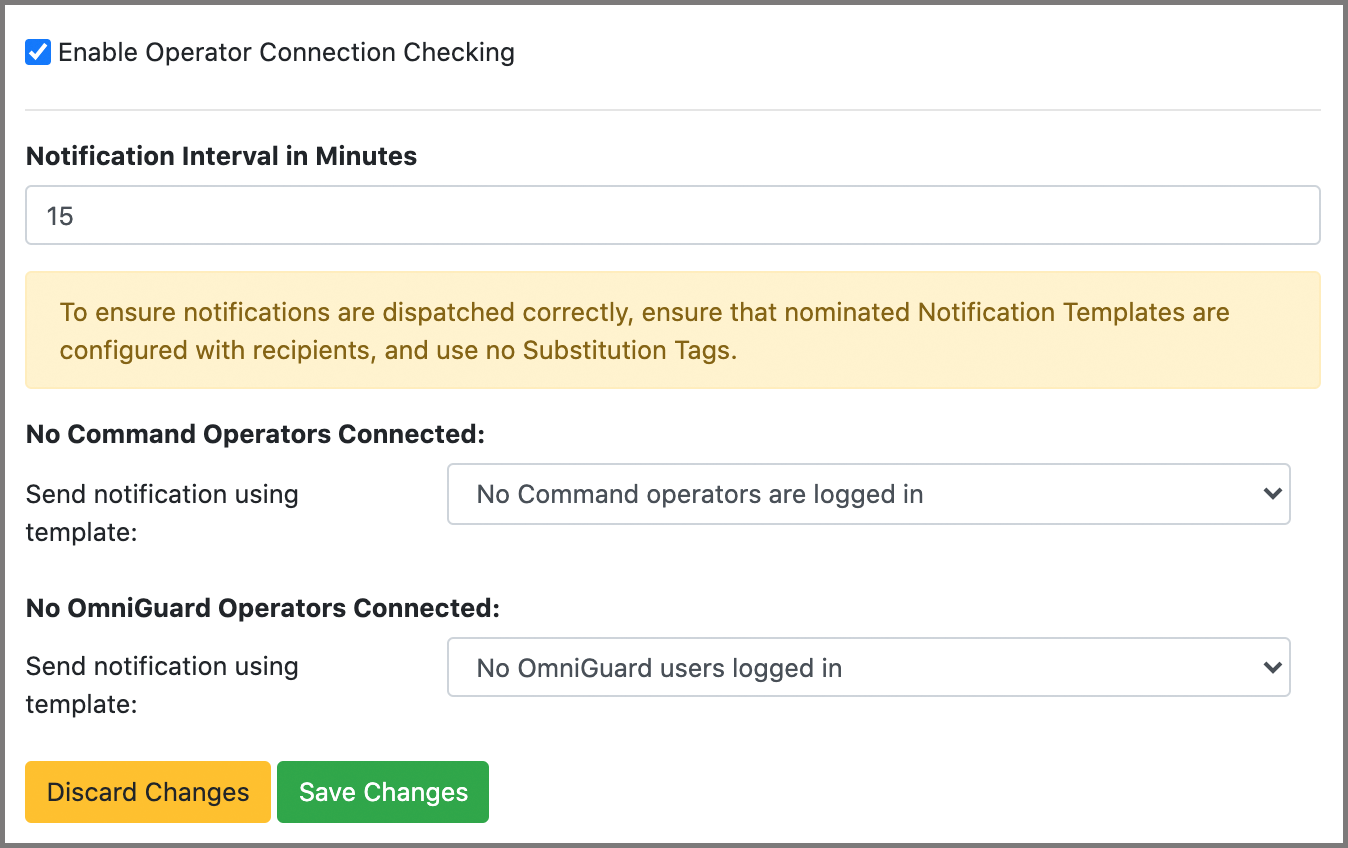
- If the system detects that no users are logged in to Command or there are no OmniGuard users connected to the server, the system will send out a notification message. You can specify how long in minutes between notifications by adding in the number under "Notification Interval in Minutes" (the above example sets it to 15 minutes)
- You can then choose an email template to send out from the drop-down menu when the event occurs. The default is set to Do not notify.
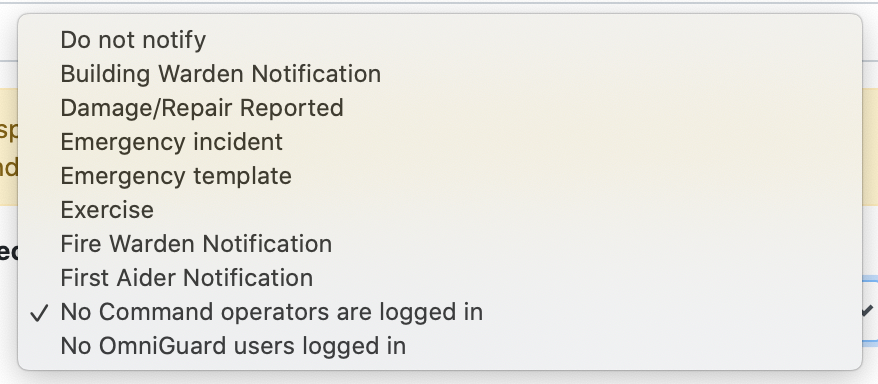
- Click Save Changes to save and close the editor menu, otherwise click on Discard Changes to discard.
Comments
0 comments
Please sign in to leave a comment.